Sumeru, vast beyond measure. A mustard seed, resting on a fingertip.
The image of Sumeru held within a mustard seed lies at the heart of XUJIE. On a single screen, an idea finds room to grow: into form, into rhythm, into a world of light and color.
This is the spirit of XUJIE 3D.
Room for the hand to createA closer connection to formCreate directly on your device
02From thought to formTHOUGHT INTO FORM
From the space within to the character of the surface.
Hollowing gives the interior room. Hammering gives the surface character. Bending gives the form a new direction.
Preserve the silhouette as you open up the space within. Set the wall thickness, inspect the inner shell and examine thin areas before applying the result.
Control wall thickness
Give the space within a considered boundary.
Preview and inspect
Inspect the inner shell and local wall thickness before you commit.
A glimpse inside the seedExplore
Draw the section apart to reveal the space between the inner and outer walls.
HollowingXJ / 001
Outer shell
Inner cavity
Wall section
03 / EXPLODED VIEWInteractive illustration
Parametric hammeringXJ / 002
01 Original formProcess playback
FINE HAMMERINGInteractive illustration
02 / PARAMETRIC HAMMERING
Every mark catches the light.
Let hammered impressions follow the form. Adjust their scale, spacing and depth in relation to your object, moving from a smooth surface to a fine or generous texture.
A sense of proportion
Scale each impression in relation to the current object.
Give texture a direction
Guide and stretch the pattern along a chosen path.
From smooth to texturedExplore
Change the depth and watch each impression catch the light.
03 / BEND & FLOW
Let the line lead. Let the form flow.
Guide the form with a curve. Move control points to refine its course, turning a straight structure into an expressive arc, one considered adjustment at a time.
A curve to follow
See the connection between the path and the changing form.
Refine each turn
Edit control points to shape the bend and its direction.
Find a new directionExplore
Follow the pale guide as the straight form becomes a flowing curve.
Curve bendingXJ / 003
01 Original formProcess playback
ARCInteractive illustration
From form to finishTHE FINISHING TOUCH
Ray tracingXJ / 004
ShadedTraced
Preparing the ray traced scene0 / 256
Ray tracedWeb ray tracing illustration
04 / LIGHT & MATERIAL
Let light bring form to life.
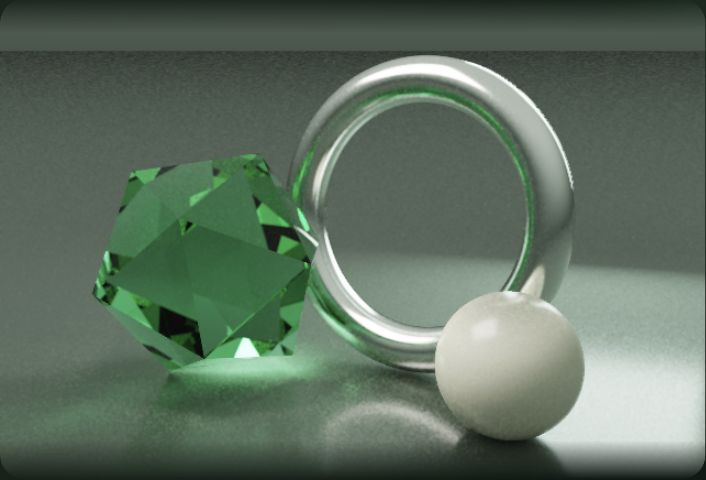
Let reflections travel across metal, light pass through a gem and soft shadows describe a curve. Render with ray tracing directly on iPad, and see your work in a new light.
HDR environments and lighting
Switch environments, rotate the lighting or import HDR and EXR files.
From material to final image
Choose materials, set samples, bounces and denoising, then export your render.
One scene. See what light brings to it.Explore
See the scene reflected in metal, light refracted through green crystal, and soft shadows that ground each form.
A rhythm you imagine. A measure you define.
Progressive copy illustration
05 / SIZE & RHYTHM
Variation, in measured rhythm.
Set a target dimension or weight, then let a form grow through repetition. Choose the direction and size each successive copy by a millimeter increment or a scale factor.
06 / MAKE IT YOURS
Every detail, considered.
Leave room for the next refinement.
01 / OPENINGS
An opening, with intention.
Position an opening and adjust its diameter and direction. Round its edge for a natural transition into the surface.
02 / Masks & face groups
A boundary for each refinement.
Use a brush or region selection to define where you edit. Organize surfaces with face groups and keep clear boundaries around each adjustment.
03Room to createSPACE TO CREATE
Room for imagination. Your work, in your hands.
MOVE · PIN · RESIZE
A workspace that moves with you.
Move and resize panels to give your model room. With undo and redo close at hand, each adjustment can lead somewhere new.
LOCAL MODELING · FILES · EXPORT
Create at your own pace.
No app account is required. Modeling and rendering happen on your device. The app does not automatically upload projects to developer servers. You choose where to save and share.
XUJIE 3D · V1.0 RELEASE
Where your next idea takes root.
A world of form, held in your hand. Made for iPad.
Preparing for launch
¥68
Planned launch price in China Final price and availability are shown on the App Store
The release edition is preparing for launch. Check the App Store for actual availability and purchase options.
What is the launch price?
The planned introductory price in China is CNY 68. Prices in other regions and the final price are shown on the App Store. The price may change in the future; no increase date has been set.
Does ray tracing require uploading my model?
Ray tracing in the current release runs on your device and does not require uploading your model to developer servers. Choose lighting, HDR environments and materials, then adjust samples and output size. Render time depends on your model, settings and device.
Do I need an account to use the app?
The current release requires no app registration or sign in. Core modeling and project saving do not require an external service.
Are my models uploaded automatically?
Modeling and rendering happen on your device. The app does not automatically upload projects to developer servers. When you use system files, cloud file providers or sharing services, the selected service handles the files you choose. See ourPrivacy policy.
How can I save and share my work?
Save and manage projects on the Files page, or import and export models through system file and sharing interfaces. Manage exported files and copies saved by other services in their respective locations. See thegetting started guide.
How can I get help?
VisitSupportor email 2517328930@qq.com. Include your app version, device and steps to reproduce the issue. Sharing a model or attachment is optional.